How to Reset Your Apple ID Password: Best 5 Methods
Apple ID is one of the best iOS features Apple company has ever produced. It stores your backups, iCloud, emails, settings, and apple data, along with your other details. If you have forgotten the password and wonder How to Reset Your Apple ID Password, you are at the right place. I will help you with all possible methods of resetting your Apple ID password.
I do not like keeping the same password for all social media accounts, emails, bank applications, cards, or anywhere else. I also forget my passwords. Rather, resetting passwords has become my habit. My most used feature over websites and apps is ‘Forgot Your Password.’ Yes, I really mean it. However, I rarely feel it difficult to reset the passwords. I always build a strong password recovery setup while setting the password the first time. This saves me from getting into any trouble.
So, let us dive in and find the solution for how to reset your Apple ID password. Keep in mind that I am one of the most qualified and experienced persons in this field. Haha!
How to Reset Your Apple ID Password?
Don’t beat yourself! You are not the only person who has forgotten a password. It is one of the most frequent issues a person has to deal with. Resetting a password is easier when you have all the other details in line. But if you do not have any recovery setups, it makes the process lengthy, hard and next to impossible. I have mentioned the easiest methods first and the very uncommon situations, in the end, to make it easier for you. Let us begin with the easiest method of How to Reset Your Apple ID Password Using iPhone or iPad.
How to Reset Your Apple ID Password Using iPhone or iPad?
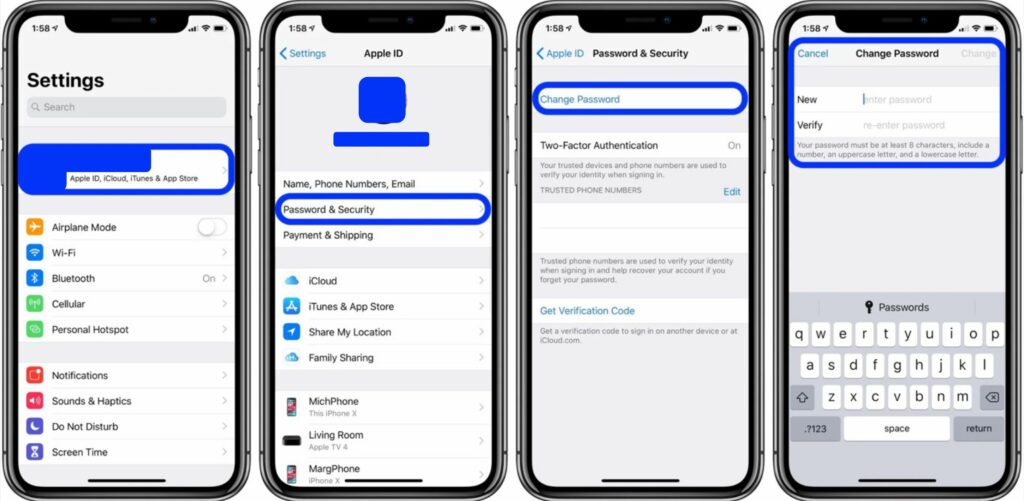
Resetting your password from your iPhone or iPad is the easiest one. If only you have forgotten your Apple ID password and you have access to your iPhone or iPad. Follow these:
- Go to your iPhone or iPad Settings
- At the top of the left panel, tap your Apple ID
- Go to Password & Security
- Tap Change Password
- Enter your passcode, which you use to unlock your iPhone or iPad
- Press Done at the top right corner
- On the new ‘Change Password’ window, enter your new password in both the ‘New’ and the ‘Verify’ fields.
- Press Change at the top right side of the window
That is it, Easy, isn’t it?
How to Reset Your Apple ID Password on Mac?
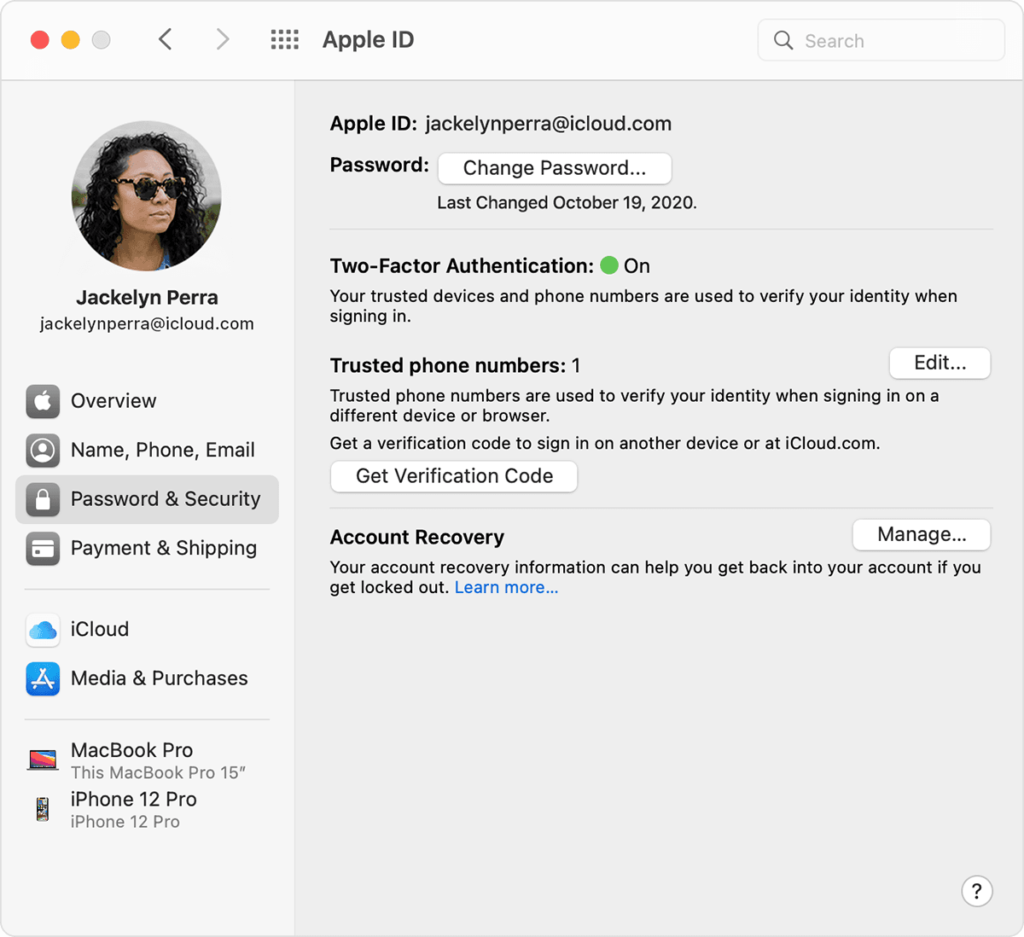
In case your iPhone or iPad is locked, go to the computer. If you have Mac and your Apple ID is logged in, it will be as easy as pie. In Mac, the steps are quite similar to iPhone and iPad. Here is how to reset your Apple id password on Mac. Okay, power on your Mac and:
- Go to Apple Menu
- Click System Preferences it will open the Apple ID window
- Click Password & Security
- You will see the Change Password option on the main window, click it.
- It will ask, ‘Enter your password to allow this.’
- Type the password you use to unlock your Mac when you power it on.
- Click Allow.
- On the new ‘Change Password’ prompt window enter your new password in both the ‘New’ and the ‘Verify’ fields.
- You did it.
How to Reset Your Apple ID Password From a Browser?
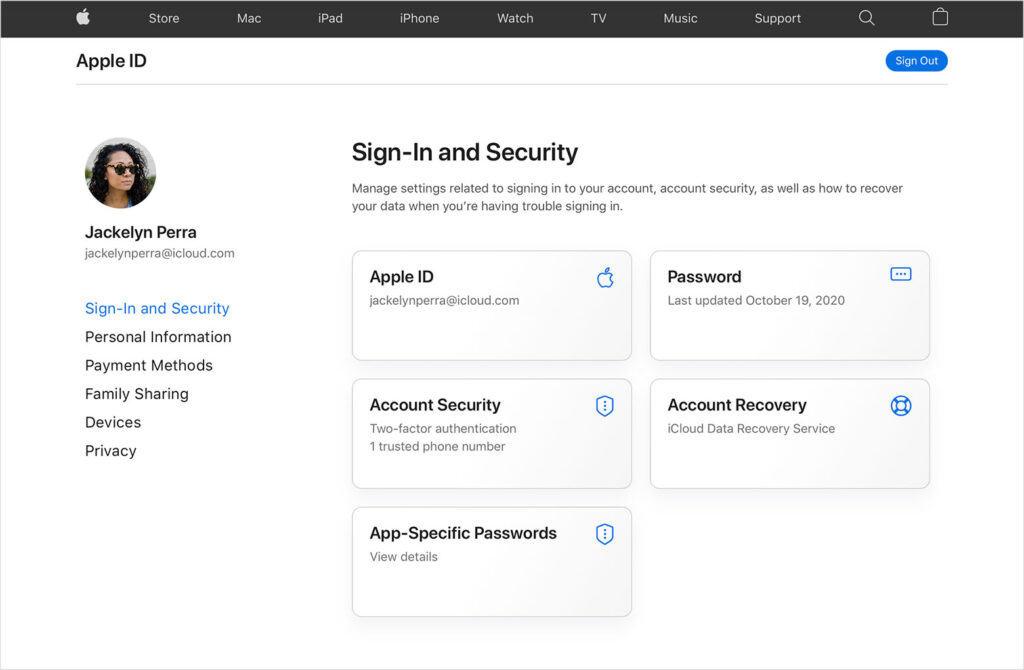
If you are looking to reset your Apple ID password from a browser, here’s how to reset your Apple ID password.
- Launch any browser from your device (Mac, earlier versions of macOS, or Windows)
- Type the iForget web address in the address bar
- Type your Apple ID and hit continue
- Confirm your phone number
- You will receive a ‘Password Reset’ prompt on your Apple device(s) where you have used the same Apple ID. It will ask you to ‘Allow’ and ‘Don’t Allow’ the password reset.
- Click Allow.
- Now on the password reset Menu enter your new password. Confirm it in the second field
- Click Done.
You did it.
How to Reset Your Apple Id Password Without Having Access to Your Devices?
Are you stuck at step 5 of How To Reset Your Apple ID Password From A Browser? That means you do not have access to any device previously logged-in with your Apple ID. Then you have these options:
- Enter your Apple ID from any of the following
- New Apple Device
- Your Friends Apple Device
- Or visit the Apple Store
- Open Apple Support App
- Go to Password & Security
- Click Reset Apple ID Password
- Tap on the Get Started Tab
- Select the option A different Apple ID in the new window
- Enter your Apple ID
- Follow the instructions till you get the Create New Password window
- Type new password
How to Reset Your Apple ID Password Without Having Access to Any Apple Device?
If you don’t have access to your phone number, any Apple Devices, or your Apple ID email, or if for any other reason you are still stuck at step 5 of ‘How To Reset Your Apple ID Password From A Browser?’ and none of the steps of ‘How To Reset Your Apple Id Password Without Having Access To Your Devices?’ have worked for you. Then:
- Continue from step 4 of ‘How To Reset Your Apple ID Password From A Browser?’ and follow the instructions.
- Enter your new phone number and other details.
- But remember, this process is lengthy both stepwise and timewise.
How to Reset Your Apple ID Password?
Wrapping Up
I have mentioned all possible methods of How To Reset Your Apple ID Password. If you are still stuck on any point, or you need some other help, drop me a comment below. I will get back to you as soon as possible. There are many helpful articles, tricks, and hacks for your iPhone and iPad. Navigate and keep surfing the Path of EX.
Frequently Asked Questions
u003cstrongu003eHow to Reset Your Apple ID Password On iPad?u003c/strongu003e
Here is how to reset your Apple ID Password on iPad:u003cbru003e1. Go to u003cstrongu003eSettings Appu003c/strongu003eu003cbru003e2. Tap your u003cstrongu003eApple IDu003c/strongu003eu003cbru003e3. Click u003cstrongu003ePassword u0026amp; Securityu003c/strongu003eu003cbru003e4. Tap u003cstrongu003eChange Passwordu003c/strongu003eu003cbru003e5. Enter your iPad u003cstrongu003epasscodeu003c/strongu003eu003cbru003e6. Press u003cstrongu003eDoneu003c/strongu003e at the top right corneru003cbru003e7. On the ‘u003cstrongu003eChange Passwordu003c/strongu003e’ window, enter your new password in both the u003cstrongu003e‘New’ u003c/strongu003eand the u003cstrongu003e‘Verify’ u003c/strongu003efields.u003cbru003e8. Press u003cstrongu003eChange u003c/strongu003eat the top rightu003cbru003e9. Done.
u003cstrongu003eHow to Reset Your Apple ID Password if iPhone gets locked?u003c/strongu003e
You can reset your Apple ID from your Mac if you are logged on with the same Apple ID.u003cbru003e1. Go to u003cstrongu003eApple Menuu003c/strongu003eu003cbru003e2. Click u003cstrongu003eSystem Preferencesu003c/strongu003e it will open theu003cstrongu003e Apple IDu003c/strongu003e windowu003cbru003e3. Click u003cstrongu003ePassword u0026amp; Securityu003c/strongu003eu003cbru003e4. You will see the u003cstrongu003eChange Passwordu003c/strongu003e option on the main window, click it.u003cbru003e5. It will ask, u003cstrongu003e‘Enter your password to allow this.u003c/strongu003e’u003cbru003e6. Type the password you use to unlock your Mac when you power it on.u003cbru003e7. Click u003cstrongu003eAllowu003c/strongu003e.u003cbru003e8. On the new ‘u003cstrongu003eChange Passwordu003c/strongu003e’ prompt window 9. Enter your new password in both the u003cstrongu003e‘New’ u003c/strongu003eand the u003cstrongu003e‘Verify’ u003c/strongu003efields.u003cbru003eYou did it!
u003cstrongu003eWhat is passcode? I was trying to reset my Apple ID, and it is asking for a Passcode?u003c/strongu003e
It’s the same password you use to unlock your device with. You need to enter that exactly before the last step of resetting your Apple ID password.
u003cstrongu003eHow long does it take to reset Apple ID password without having access to any Apple devices and recovery numbers?u003c/strongu003e
Due to security reasons, it takes several days or longer if you don’t have access to your phone number and any Apple Devices. The process varies for person to person and account to account.