Can You Schedule a Text on iPhone? You Sure Can
Anybody should be able to schedule a text. It is a very useful ability. And when someone wants that ability as much as you want it now, they should be able to schedule a text on iPhone. What is an iPhone with all its fancy reputation if you cannot use it to schedule a text? Well, you will schedule a text on your iPhone after reading this.
iOS doesn’t allow a text scheduling option in the iPhone Messages app. You can schedule a text on your iPhone but not through the Messages app. It allows text scheduling on another built-in app. There are other third-party apps dedicated to sending future text messages. We will talk about them all in this write-up.
How to Schedule a Text on iPhone using iPhone Shortcut
You can use the iPhone Shortcut Automation to set a future time to send a message. It is very convenient when you need a message to be sent to someone but later. Also, if you have a message to be dispersed to different recipients at the same time, you could use the ability to schedule a text message.
To schedule a text on iPhone through the iPhones Shortcut App, follow these steps:
1. Open the Shortcuts app.
2. Tap on the Automation tab.
3. Press the ‘+’ at the upper right
4. Tap Create Personal Automation.
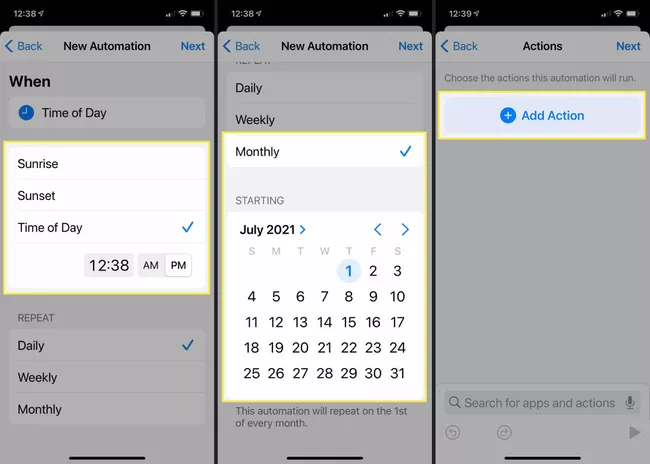
5. Select the Time of delay. Enter time.
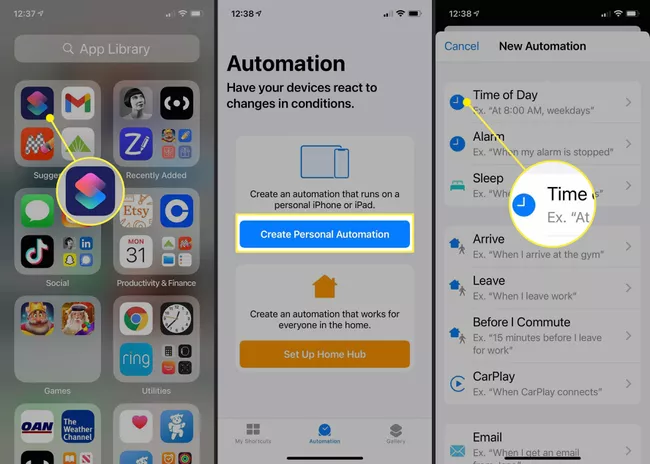
6. Tap on Month, and adjust the date according to your preference.
7. Tap Next.
8. Tap Add Action.
9. Select Send Message and choose the recipient.
10. Type the message.
11. Tap Next.
12. Review the new automation before tapping Done. If you are sure about all the details in the new automation and want to send the message at a decided time without having to confirm once again, you can toggle the Ask Before Running option. When it’s turned off, the automation will run automatically.
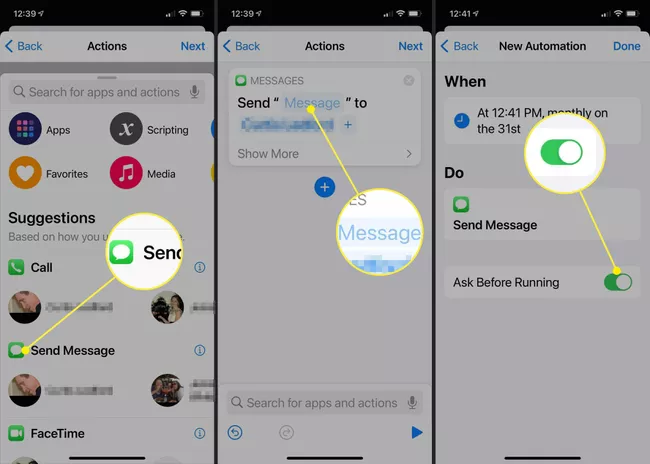
13. Tap Done.
Get a Text Scheduling App
You might want to schedule a text on your iPhone for purposes where you don’t like to send it from your personal phone number. You can download a third-party text scheduling app that lets you send messages from random numbers available in the app. These services are generally chargeable. Some of the best apps in the App Store to send scheduled text messages are:
- AutoSender – Automatic Texting
- Reminderbase- Scheduled Text
- Scheduled – Plan text messages
1. AutoSender – Automatic Texting
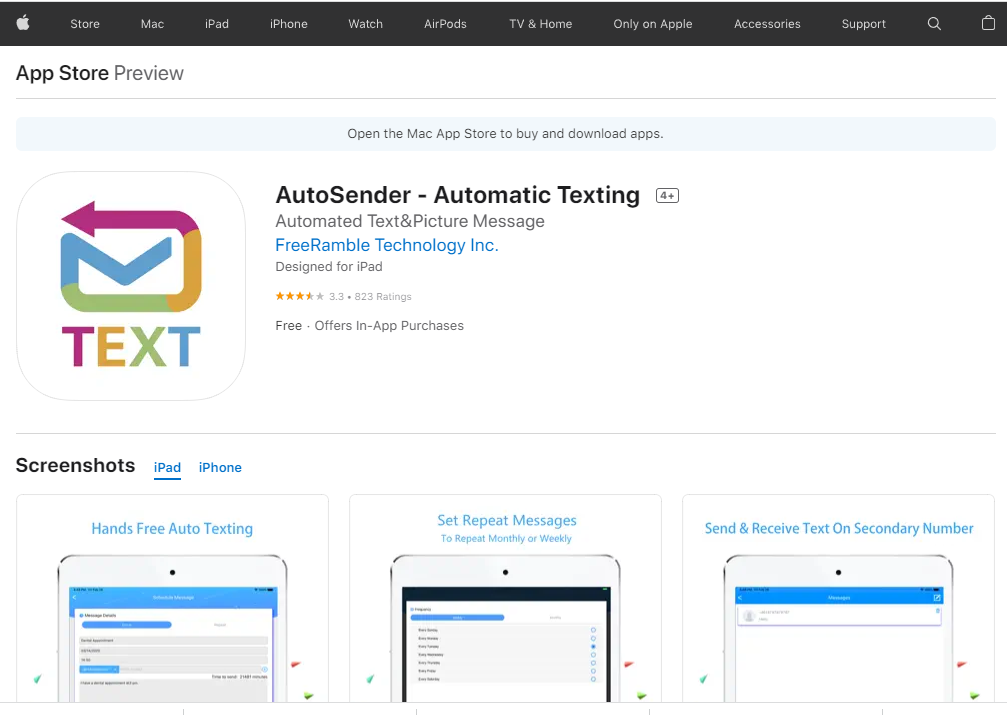
AutoSender is an app designed for iPad by FreeRamble Technology Inc. It is a paid service where you can get multiple USA or Canadian phone numbers you can choose from. You can send both automated and manual SMS or MMS via this application. They also allow auto SMS reply and SMS forwarding. You can even schedule SMS from iOS’ Calendar and Reminders app.
Download AutoSender
2. Reminderbase: Scheduled Text
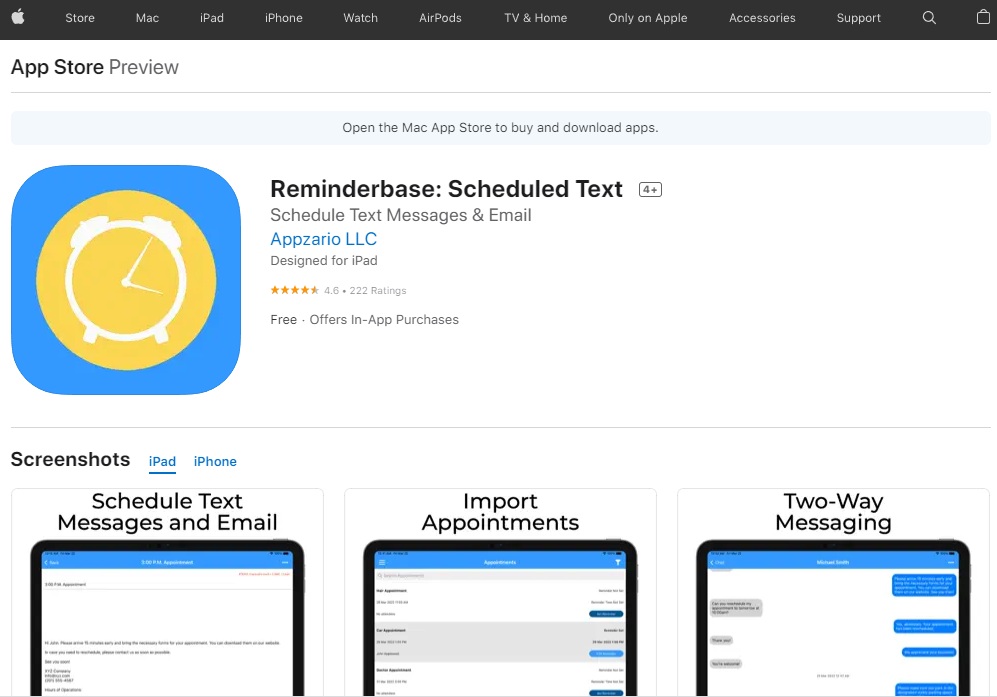
Reminderbase is developed by Appzario LLC. It has a 4.6 rating on App Store. It allows you to send scheduled messages to your family, friends, customers, and others. With an upgraded plan, you can send unlimited messages from a local number provided by Reminderbase. The SMS and MMS are limited to 160 characters. From sending automated emails to importing appointments from your Calander this app is very helpful.
Download Reminderbase
3. Scheduled – Plan text messages
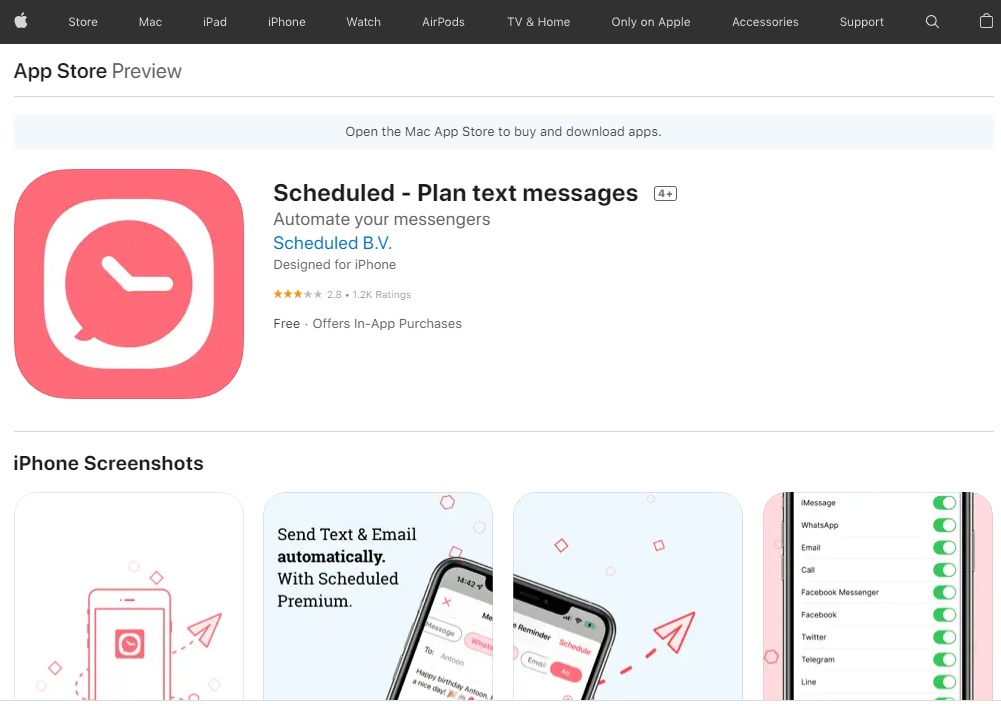
Scheduled is an app Scheduled B.V. Unlike the two other apps I have mentioned above, this app lets you send messages through iMessage, Whatsapp, Telegram, Line, and Email. All you need to do is schedule a message > select contact(s) > select if you want to auto-send the message or not > select if you want to repeat the message or not > send your message with one of the messaging apps you have in your iPhone.
Wrapping Up
You can schedule a text on iPhone. But it is not very straightforward. Although, it is not much of a strenuous job as well. The iPhone Shortcut method is the best in my eyes. It is an in-built app, and it is therefore, reliable. The third-party apps are also efficient, but their consistency cannot be guaranteed. Moreover, we don’t know when Apple will ban these apps, yeah, it is possible. Nevertheless, I hope I could cater the information you were looking for. Until next time, Ciao!
Frequently Asked Questions
u003cstrongu003eCan You Schedule a Text on iPhone?u003c/strongu003e
Yes, you can schedule a text on your iPhone.
u003cstrongu003eHow to schedule a text on iPhone?u003c/strongu003e
Open the u003cstrongu003eShortcuts u003c/strongu003eapp u0026gt; Tap on the u003cstrongu003eAutomation u003c/strongu003etab u0026gt; Press the ‘u003cstrongu003e+u003c/strongu003e’ at the upper right u0026gt; Tap u003cstrongu003eCreate Personal Automationu003c/strongu003e u0026gt; Select the u003cstrongu003eTime of delayu003c/strongu003e. Enter time u0026gt; Tap u003cstrongu003eNextu003c/strongu003e u0026gt; Select u003cstrongu003eSend Messageu003c/strongu003e and choose the recipient u0026gt; Type the message.
u003cstrongu003eWhat App to Use to Schedule a Text on iPhone?u003c/strongu003e
You can use the in-built u003cstrongu003eShortcuts u003c/strongu003eapp. You may also use thirds party apps like Reminderbase, Scheduled, and AutoSender.