Why is Your iPhone Home Button Not Working? Get 5 Easy Fixes
Is your iPhone home screen button not working? Well, the home button on an iPhone is a small part, but it plays an important role. It helps you to wake up your iPhone, go to the home screen, and open apps. So, if your iPhone home button is not working or gets stuck or broken, you might feel annoyed or frustrated. Fortunately, a few fixes can help you resolve iPhone home button not working issue.
If you find that your iPhone’s home button is not working, you can try restarting your iPhone, cleaning the home button, updating your iPhone’s software, restoring your iPhone’s settings, etc. Several easy fixes can help you fix the iPhone’s home screen button not working. You can try these methods and resolve the issue without paying any amount to external engineers.
In the below post, I have shared different ways to fix iPhone’s home button not working issue. Also, I have added steps to use iPhone without a home screen.
5 Ways to Fix iPhone Home Button Not Working
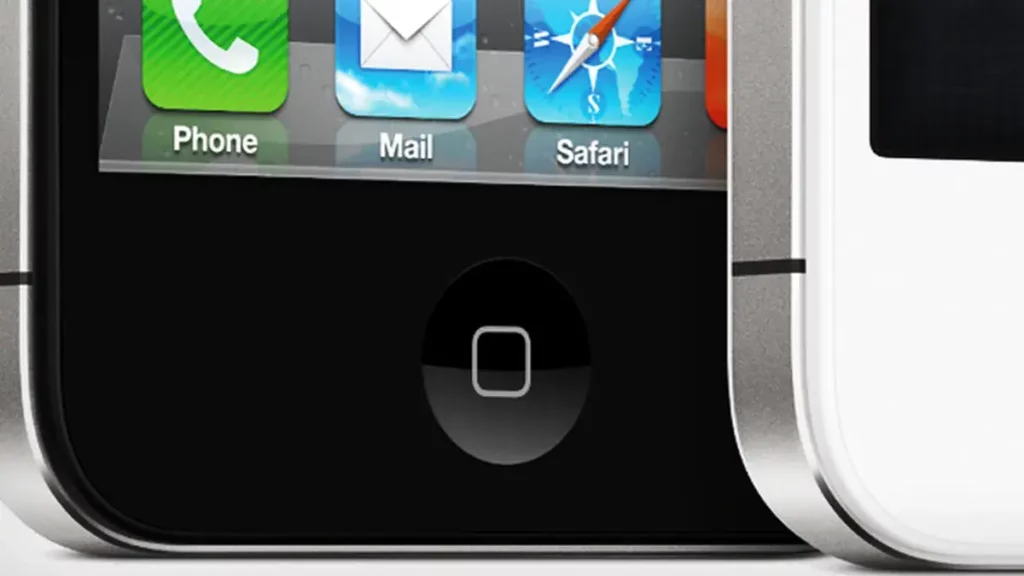
There can be many reasons behind any issues with your iPhone Home button. If your iPhone is under warranty, then it is better to go to a nearby Apple Store to get the problem fixed. However, you still do not need to worry if it is not under warranty. Here I am mentioning some effective ways to fix the iPhone Home button.
It does not matter if you have an iPhone SE or 8. These methods will work on every iPhone, iPod, or iPad touch with a Power button. And, if you have recently updated your iPhone to iOS 16, then you must also check: Why is developer mode not showing?
1. Add an Assistive Touch Home Button
You must be unaware that your iPhone has many hidden accessibility features. When your iPhone’s button is not working, the best-hidden accessibility feature will help you and prove to be a perfect workaround for this problem. This feature is called Assistive Touch. Apple specially invented this feature for those people who faced difficulties using physical buttons.
You need to turn on the Assistive Touch from the Settings of your iPhone. By turning on the Assistive Touch, you can add a software-based Home button to the screen of your iPhone. Using an assistive touch will enable you to use your iPhone without a home button; it will not help you to resolve the issue. Let us see how you can add a Home button to the screen of your iPhone with the Assistive Touch.
- Go to the Settings of your iPhone.
- Tap on Accessibility.
- Press the “Touch” option.
- Click on the “Assistive Touch” option. (Note: For older iOS versions, go to Settings, select General, press the Accessibility option, and click on the “Assistive Touch” option.)
- Next, turn on the toggle for Assistive Touch. You will notice a semi-transparent button on your screen.
- Now, click on the semi-transparent button. After clicking the button, you will notice a popup menu on the screen.
- Next, press the Home to simulate tapping the Home button.
- Finally, drag and drop the Assistive Touch button to move it around the screen of your iPhone so it does not get in the way. You can even use Siri to turn the button off and on according to your need. And, you will not lose any of your data if you know: What does the shutdown mean on iPhone?
2. Recalibrate the Home Button
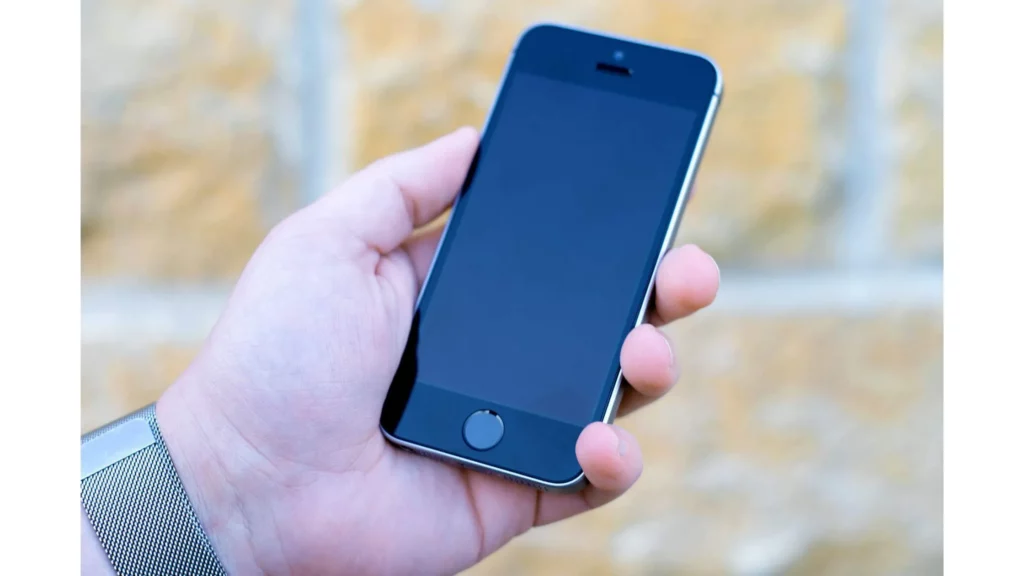
There is no proper trick to Recalibrate the Home button, as it is not official terminology. But, it is proven that this trick is very effective at fixing your iPhone’s Home button. This trick is also applicable to iPhone devices. There are a few steps that you need to follow to fix your iPhone Home button. Remember to see the steps for checking iPhone’s temperature.
- Open any installed application on your iPhone. You can open Calendar, Photos, Notes, or Reminders.
- On your iPhone, Click and hold the slide or top button until a prompt to power off appears. (Note: If you see nothing on your iPhone’s screen, try holding either volume button simultaneously.)
- Do not switch off your iPhone. Instead of switching it off, tap and hold the Home button for at least 10 seconds until the prompt vanishes and the application quits.
If this process cannot solve your issue, try repeating the same method repeatedly. You will be happy to hear that some users reported that the home button started working after three or four attempts. This method will work for physical Home buttons not working on the iPhone 6S and earlier versions. This method has also proven best for me on iPhone 7 to iPhone SE with touch-based home buttons.
3. Restore the Firmware on the iPhone
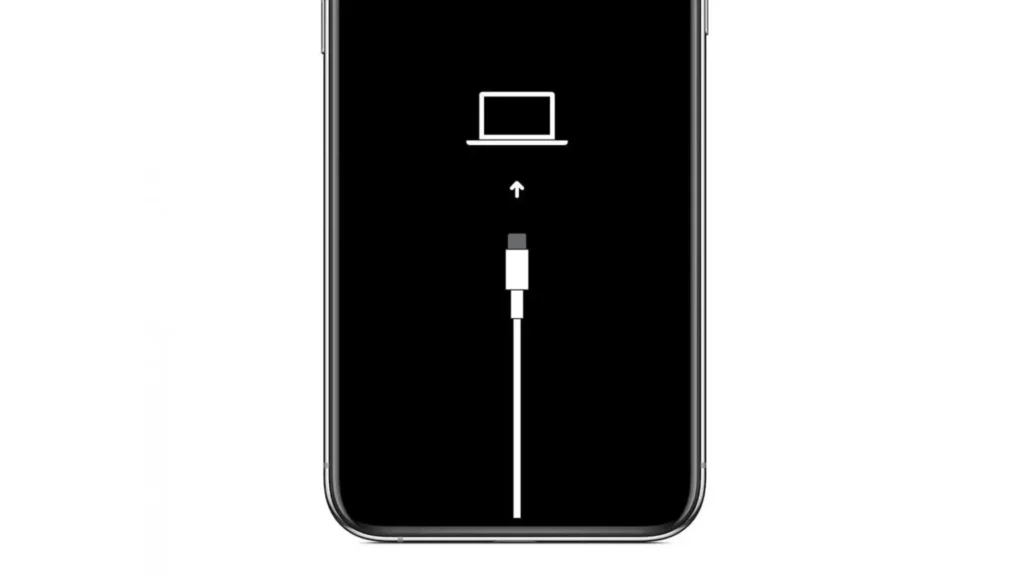
This method is not a quick one compared to the other two methods. Still, it might be the quickest method of getting your iPhone Home button working. Many times a fault in the firmware or software of your iPhone can be the reason behind the Home button not working. After restoring the device using DFU mode, you can fix these problems for free.
If you try restoring the firmware on your iPhone, your all iPhone’s data will get erased. Ensure you must take a backup before trying this method, and this method will take a minimum of one hour of your time. With the DFU mode, when you restore your device, it will rewrite every bit of the firmware and software. However, if the method cannot solve the issue, there must be a hardware problem.
4. Clean the iPhone Home Button with Isopropyl Alcohol
Sometimes, your iPhone’s Home button collects a build-up of grime and dirt because you use it throughout your life. That dirt might clog the mechanism. So, that can be the reason why your iPhone Home button is not working. But this method is not for iPhone 7, an iPhone SE, or later because these devices do not feature a mechanical button. Follow the below-mentioned steps to learn how to clean the iPhone Home button with Isopropyl Alcohol.
- Use a clean, dry microfiber cloth to wipe out the Home button.
- If it doesn’t work, dampen the cloth slightly in the 98 to 99 percent isopropyl alcohol. It will automatically evaporate in the air and will not damage your iPhone components.
- Now, gently rub the alcohol-dipped cloth over the Home button while repeatedly pressing it. When you press the Home button, the alcohol will work its way inside to remove any dirt.
5. Use the Charger to Press Against the Home Button
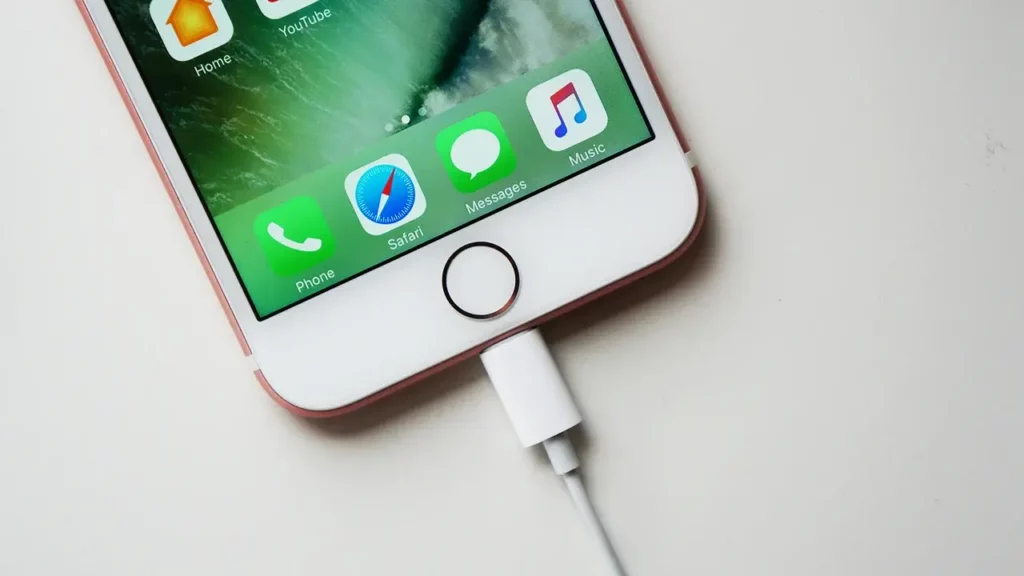
Near the charging port, a fragile cable connects iPhone’s home button and other components. Many iPhone users have resolved the iPhone home button not working issue by applying a little pressure at the home button. But be careful while you try this method.
You must take care that nothing inside your iPhone will break while you try this method. Also, ensure you must not snap off the light or 30-pin connector inside your iPhone’s charging port. It is because if it gets stuck inside your iPhone’s charging port, it is probably impossible to remove. Follow the below-guided steps carefully.
- Put in your iPhone’s charging cable.
- Near your iPhone’s bottom, press and hold the connector’s back gently as you are phishing it inside your iPhone’s home button.
- Click the home button many times with that same pressure.
How to Show the Home Button on Your iPhone’s Screen? Easy Trick
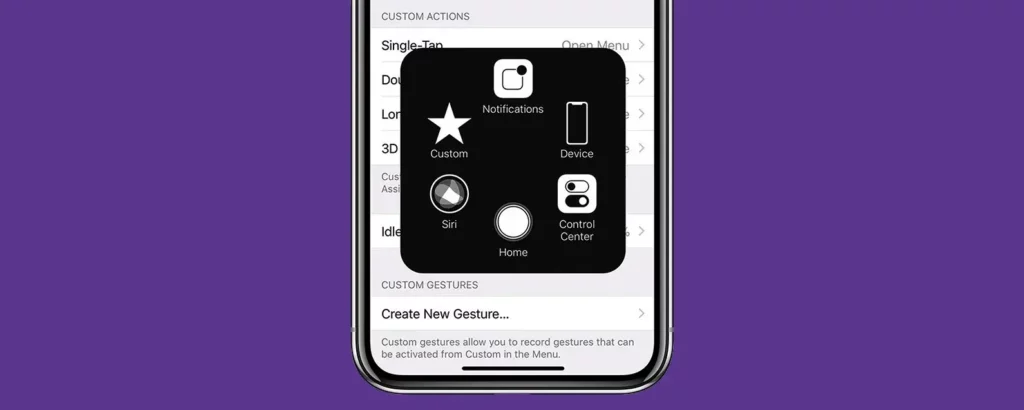
The one and only way to show the Home button on your iPhone’s screen is by activating the Assistive Touch button. After activating the Assistive Touch button, you can easily use it as a proxy for the Home button. Check out the below-mentioned steps properly to learn how to activate an Assistive Touch button on your iPhone.
- Go to the Settings of your iPhone.
- Tap on Accessibility.
- Now, click on Touch.
- Then, select Assistive Touch and click on the switch beside the Assistive Touch to turn it on.
- Tap on the Assistive Touch button on the screen to use the Home button.
- Next, click on Home.
- Use your fingers to move the Assistive Touch button around the screen.
How to Use iPhone Without a Home Button? 2 Steps
After the iPhone X, Apple decided to eliminate the idea of the Home button. It might be confusing for new iPhone users. But here I’m giving you a tip to solve your confusion regarding the Home button.
- Place a finger on the lower center of the screen.
- Now, swipe your finger upward toward the top of the screen.
iPhone Home Button Not Working: Easy Tutorial Guide
Wrapping Up
If your iPhone home button not working, you can try five different easy ways to resolve the problem. You can add an assertive touch, recalibrate the home screen button, clean your iPhone’s home button, use a charger to press the home button and restore the firmware settings. Details for each method are presented in the above post with steps. You can follow the methods and resolve your iPhone’s home screen button problem.
Is your iPhone home button not working issue resolved? Please share which method is proven best and most helpful for you in the comments section.
Frequently Asked Questions
1. Why is the iPhone home button not working?
You can face an iPhone home button not working issue when there is a problem with your iPhone’s firmware or software settings.
2. What are general solutions to resolve iPhone home button problems?
The general solutions to resolving the iPhone home button not working are adding an Assistive Touch button, recalibrating the Home button, restoring the Firmware, cleaning the iPhone Home button with isopropyl alcohol, and using the charger to press against the home button.
3. Can I use my iPhone without the home button?
Yes, you can use your iPhone without the home button with the Assertive touch button.