How to Automatically Pause GIFs in iOS 17? A Step-by-Step Guide
Are you thinking of updating your iPhone to the latest iOS 17 version? Then, you will be able to get many features like FaceTime on Apple TV and many more hidden features. Along with it, you will also get an auto-play enabled option for GIFs. It is a popular way to express yourself and share messages. But it can drain your battery quickly. Hence, many of you might be looking at How to automatically pause GIFs in iOS 17. Scroll down and find easy steps on it.
You will be able to enjoy many features with the new iOS 17 release, like changing the Contact Poster background, disabling notifications in StandBy mode, and more. Among the new available features, the one is that you can auto-play or pause the GIFs on your iOS 17 device. The enabled auto-pause GIFs option can help you save your battery life and focus on your work without any distractions.
In the below post, I will help you understand the steps on How to automatically pause GIFs in iOS 17. Also, I have mentioned the benefits and limitations of enabling the auto-pause option.
How to Automatically Pause GIFs in iOS 17? 7 Steps
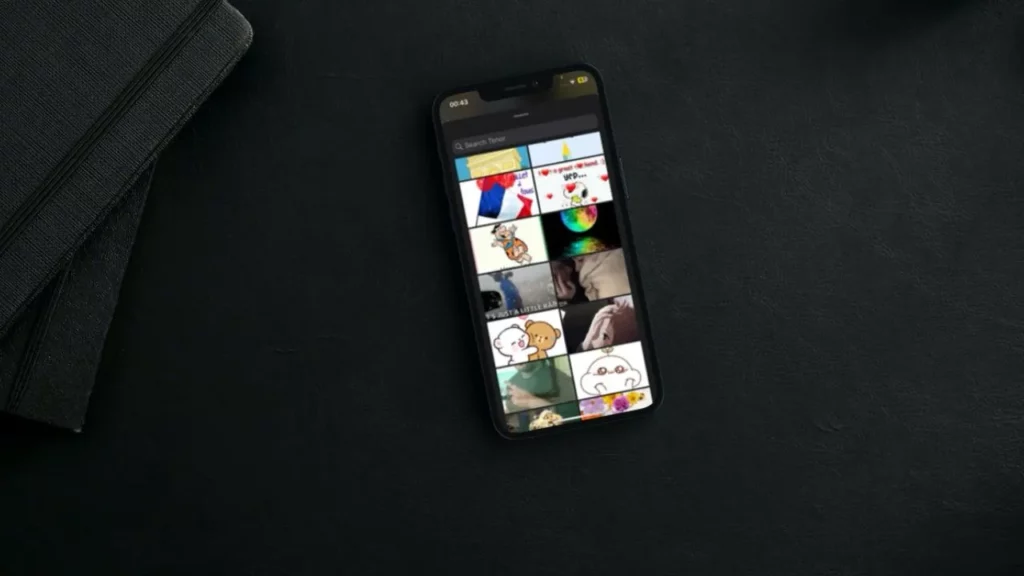
The ability to stop GIFs from playing automatically is a useful feature that is available as part of the Accessibility suite. This can be helpful for everyone, including people with vision problems or those who want to save battery life if your iOS 17 battery is draining.
The best thing about this new add-on is its system-wide compatibility. This means that it can be used to prevent animated pictures from playing without your permission, regardless of whether you are browsing the web in Safari or using an app.
- Navigate to the “Settings” app on your iOS device.
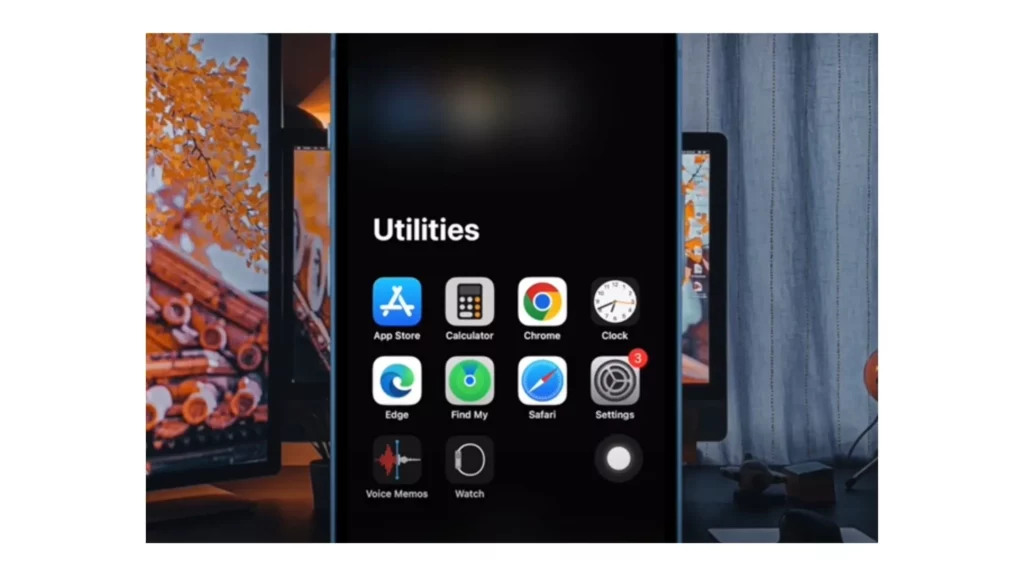
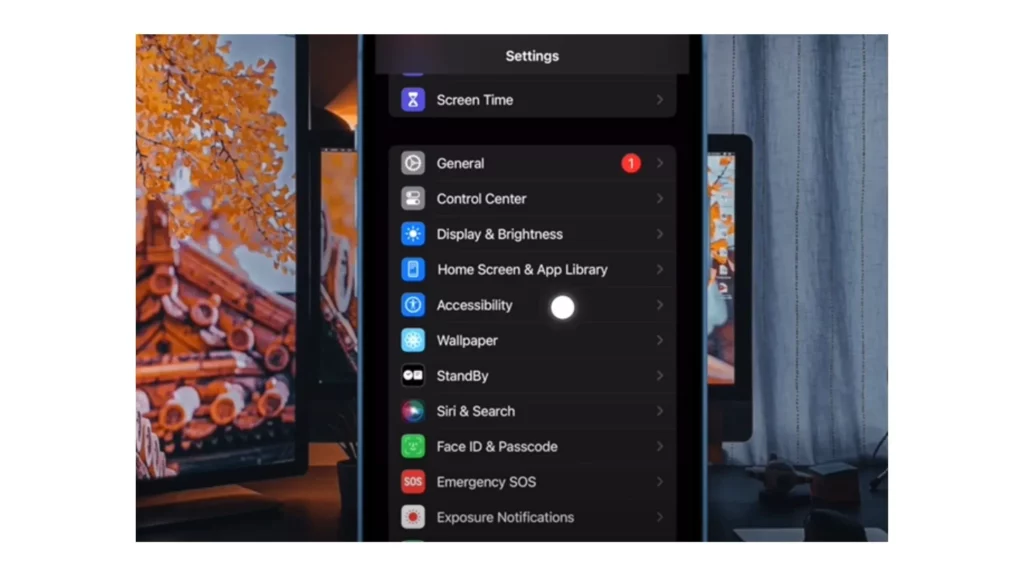
2. Select “Accessibility” from the Settings menu.
3. Click on the “Motion” option from the “Vision” section.
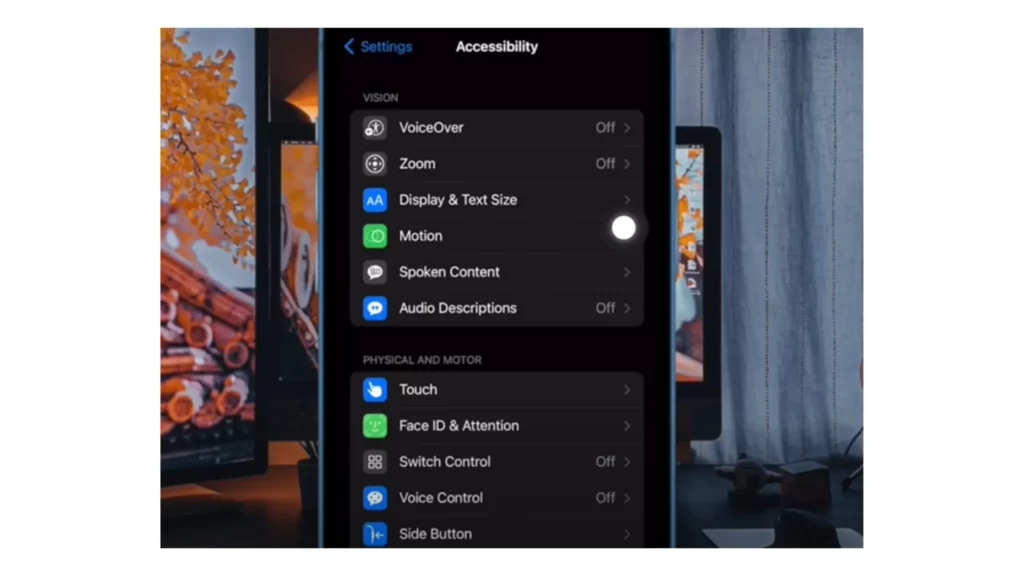
4. In front of the “Animated Images” option, you will find a Toggle button.
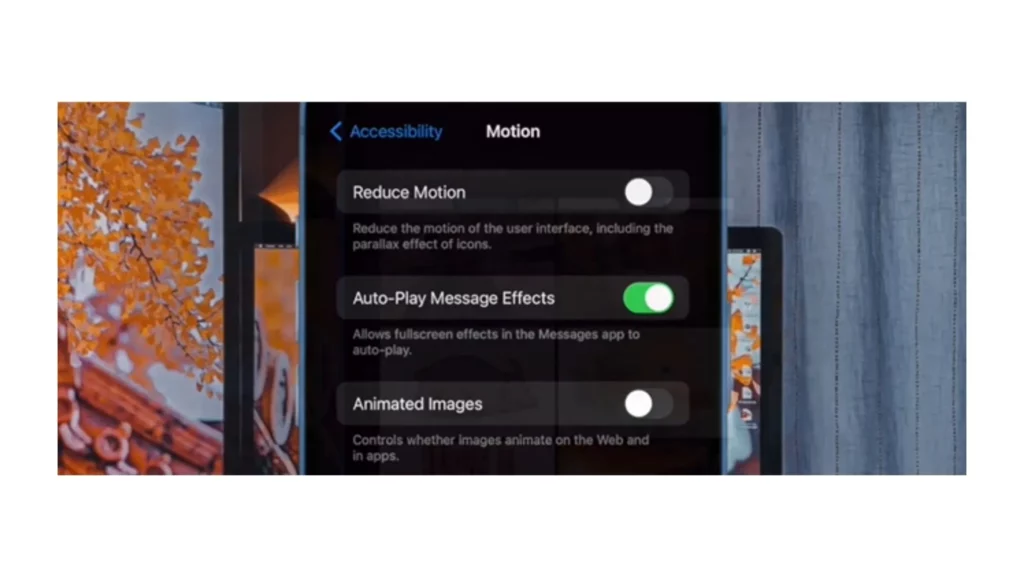
5. Finally, turn off the Toggle button.
6. Now, GIFs will automatically pause GIFs on your iOS 17 device.
7. If you wish to make animated images to play, just tap on it.
Pause GIFs in iOS 17: Learn Benefits
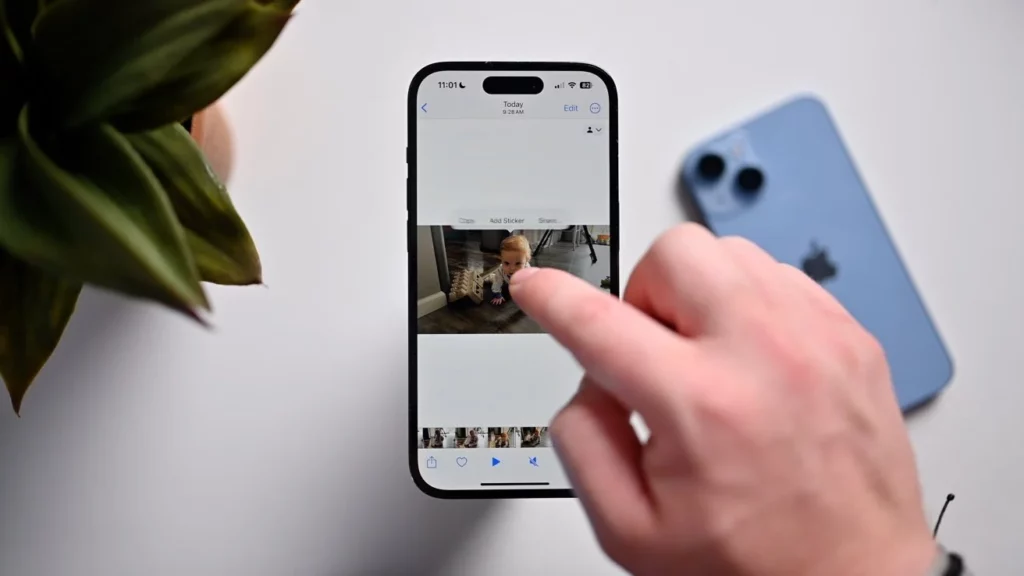
There are many benefits once you enable auto-pause GIFs on your iOS 17 device. Find a few of the benefits in the below points.
- Your iOS 17 device battery life will not drain quickly.
- Playing GIFs constantly in the background can be distracting. So pausing them can help you pay attention and avoid distractions.
- Pausing GIFs help you prevent other from seeing background animated images and hence improve your privacy.
Pause GIFs in iOS 17: Know Limitations
Everything is bounded by some limitations with benefits. Below are some limitations that you must note before enabling the auto-pause feature on your iOS 17.
- Some GIFs are designed to play automatically, and there is no way to stop them.
- After pausing GIFs, you will find difficulty in viewing images.
- You might face difficulties in sharing GIFs after pausing them.
How to Allow GIFs to Play in iOS 17 Automatically? 6 Steps
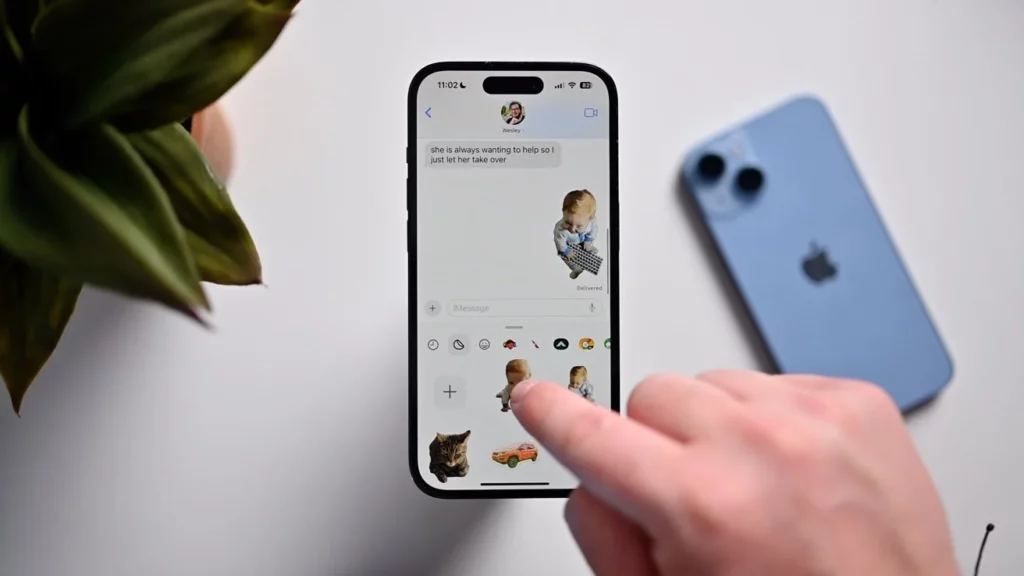
If you have opted for the auto-pause GIFs option on your iOS 17 device, you can easily enable the GIFs for auto-play mode. The below steps will help you do it.
- Navigate to the “Settings” app on your iOS device.
- Select “Accessibility” from the Settings menu.
- Click on the “Motion” option from the “Vision” section.
- In front of the “Animated Images” option, you will find a Toggle button.
- Finally, turn on the Toggle button.
- Now, animated images will play as usual.
iOS 17 Auto-Pause GIFs: Additional Tips
You must note the below points before proceeding to the steps for enabling the auto-pause feature on your iOS 17 device.
- Firstly, you must note that auto-pause and play GIFs options are available on the latest iOS devices as long as you update them to the latest version.
- You must also note that in iPhones and iPads, the auto-pause feature is available with every browser but would not work for some browsers on Macs. Apple’s requirement that all web browsers use its own WebKit browser engine is the primary reason why third-party browsers on iOS are not as popular as they are on other platforms. But, this is not with the companies developing browsers for Macs. Hence, on iPads and iPhones, the GIFs will automatically pause in Chrome, Safari, and Firefox. But, on Mac, it will work with Safari only.
- A few GIFs will not auto-pause even if you have Toggle off the “Animated Images” option. This type of minor bug will be resolved in future iOS 17 updates.
How to Automatically Pause GIFs in iOS 17? Tutorial Guide
Wrapping Up
Pausing GIFs on your iOS 17 device is a simple way to save your battery life. It can also help you stay focused and protect your personal information. So, check the above post to get the steps on how to automatically pause GIFs in iOS 17. However, it is important to know about the limitations before you enable or disable any features. So, I have stated it in the above post.
How to automatically pause GIFs in iOS 17? Is this query resolved? Please share your views and opinions in the comments section.
Frequently Asked Questions
1. How to automatically pause GIFs in iOS 17?
Go to Settings > Accessibility > Vision > Motion > Turn off Toggle in front of Animated Images.
2. Should I install iOS 17 beta on my iPhone?
It is considered that the iOS 17 beta is more stable than its earlier versions. And back up all your data before you jump to the next step.
3. Why is my iPhone draining its battery after updating it to iOS 17?
Many enabled power-hungry features can cause your iOS 17 battery to drain faster. Also, worn battery and software bugs are equally responsible for quickly draining your iOS 17 battery.