How to Delete iMessage Apps in iOS 17? Vacate Your App Library
Apple added several new Message features in iOS 17. But among these features, it also upgraded the design of the Messages application to give it a cleaner look. Now, only by clicking a “➕” icon above the keyboard and to the left of the text input field can you easily access all iMessage applications and tools like the photo and the camera options. But you cannot remove these iMessage applications directly from the screen. So, you must be looking to know how to delete iMessage apps in iOS 17.
With iOS 17, you can manually rearrange this list of iMessage applications and hidden features. The default iMessage screen order of tabs includes Camera, Photos (also, you can process to make an emoji from a photo), Stickers, Cash, Audio, and Location from the top. You can find a More tab at the very bottom. When you tap on the More button, it will reveal any other installed Messages applications. Not only this, but you can also swipe up to reveal this hidden list.
In the post below, I will help you know how to delete iMessage apps in iOS 17 and the steps to restore a deleted iMessage app.
How to Delete iMessage Apps in iOS 17? 6 Steps
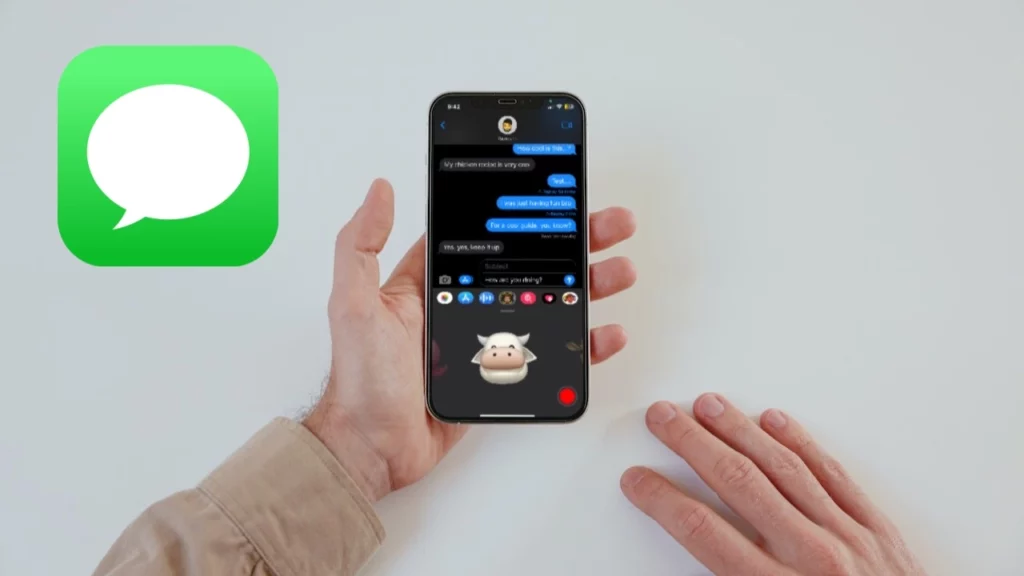
In iOS 17, you can delete iMessage apps in a few simple steps by navigating to the iMessage app from the Settings menu. If you feel the storage is full, add more storage to your iPhone. But remember, you cannot remove these iMessage applications directly from the screen. Remember that if you do not need certain third-party applications in that list, you can simply delete them.
Yes, you are reading it correctly. With iOS 17, you can now delete unnecessary iMessage applications. There are a few steps available that can help you to delete iMessage applications in iOS 17. So, let’s see how to delete iMessage apps in iOS 17.
- Go to the Settings application of your iPhone.
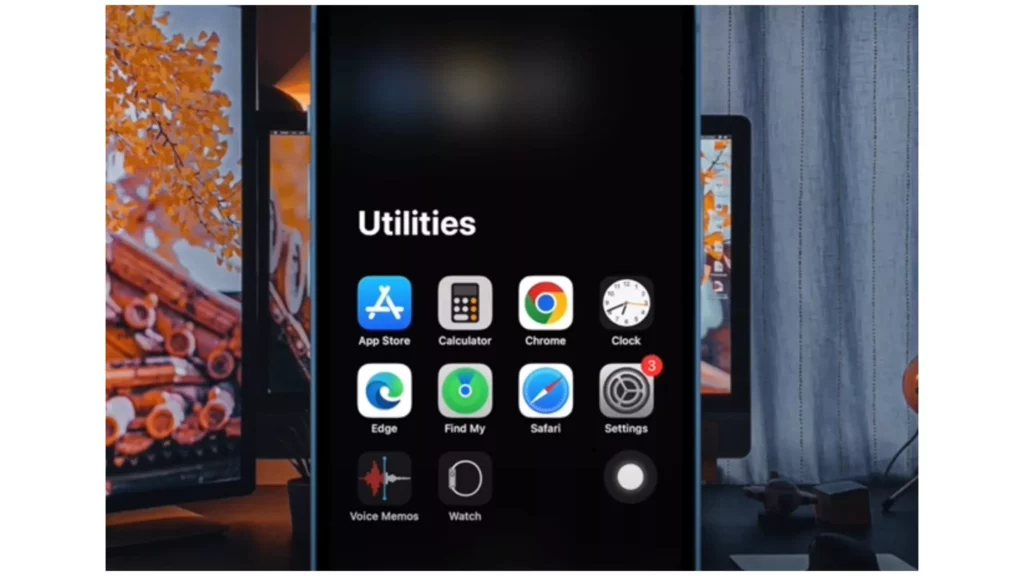
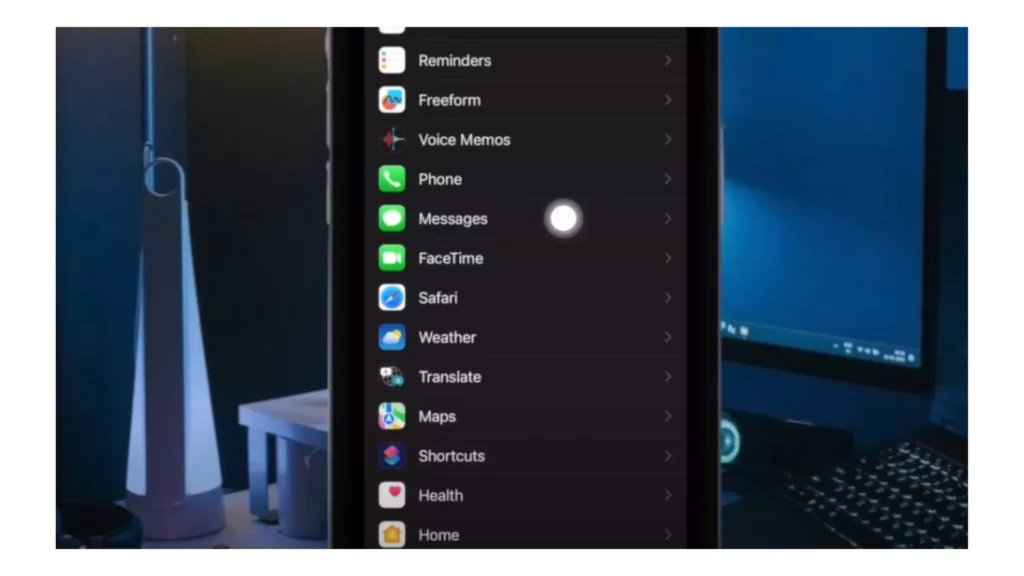
2. Scroll down and select the Messages application.
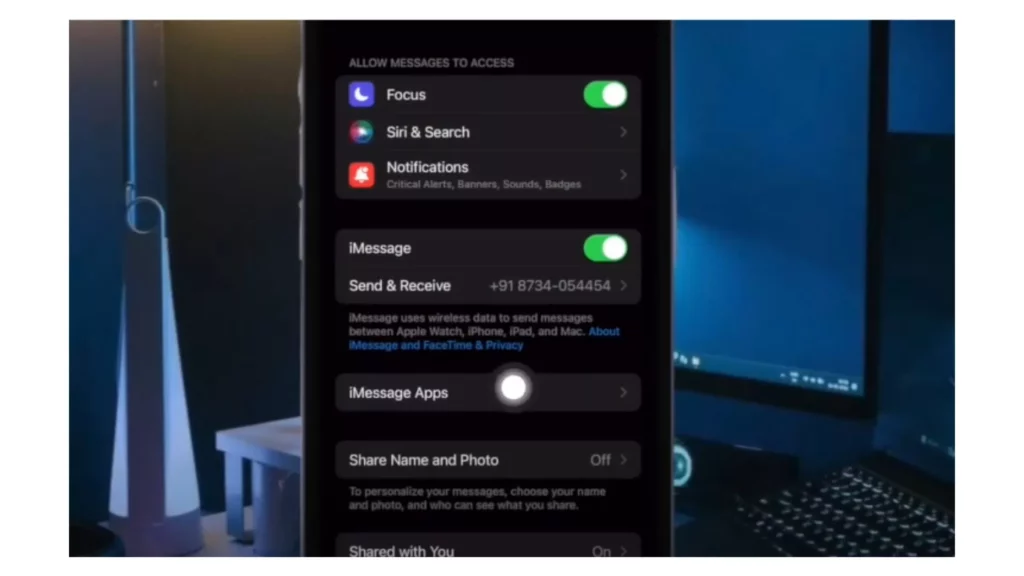
3. Now, tap on the iMessage Apps option.
4. Then, you will notice a red minus icon beside an application.
5. Next, select the applications that you want to delete by tapping on the red minus icons.
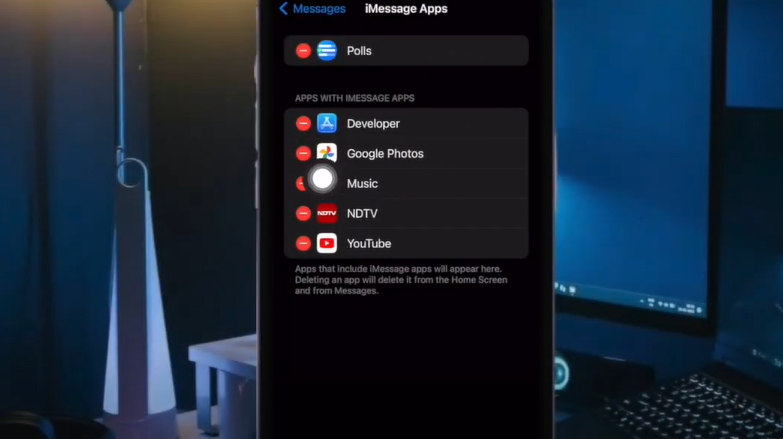
6. Finally, a Delete button will appear, and you must click it.
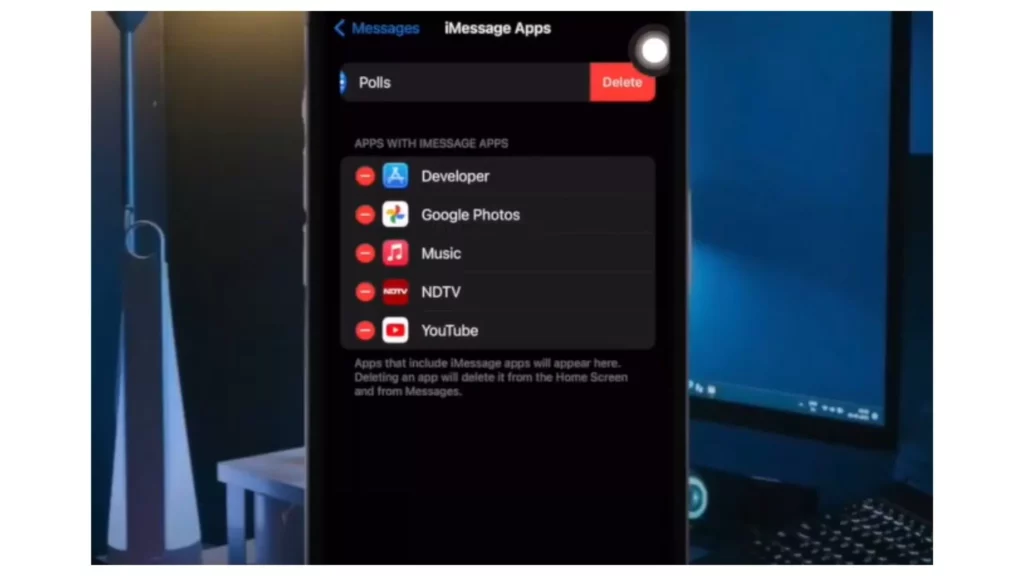
By following these easy and simple steps, you can easily delete unnecessary iMessage applications in iOS 17. But you need to remember one important thing: once you delete an iMessage application, it will also delete the associated application from the Home Screen of your iPhone.
How Can You Rearrange iMessage Applications in iOS 17?
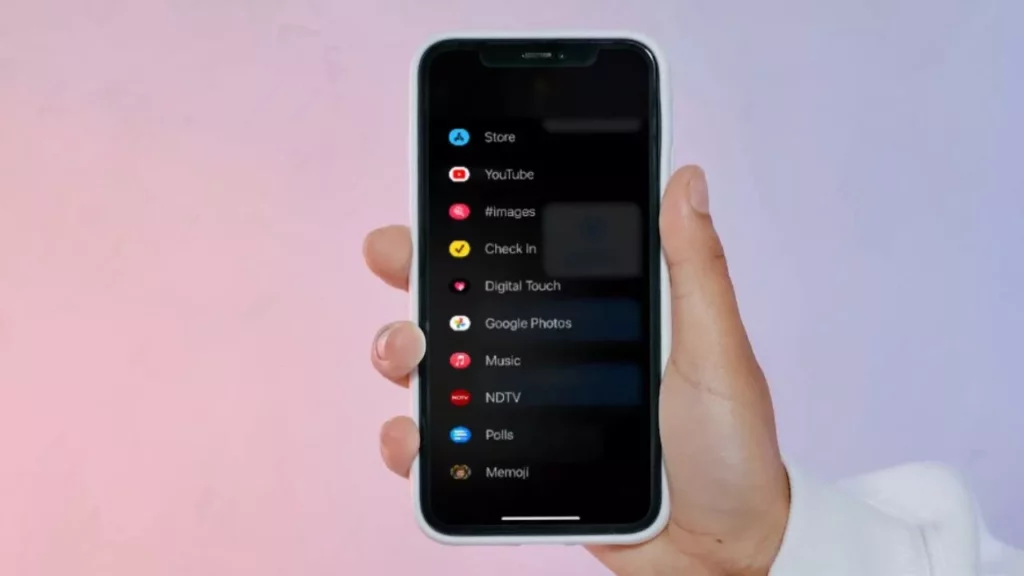
If you cannot delete an iMessage application and you don’t need that application, then I have a great idea for you. You can rearrange the iMessage applications according to your preferences. You can bring the most-used iMessage applications at the top and move unnecessary ones to the bottom.
After knowing how to delete iMessage apps in iOS 17, it is time to follow some easy and understandable steps for rearranging the iMessage applications in iOS 17. So, let’s follow the steps carefully.
- Enter the Messages application.
- Next, open an existing conversation or create a new conversation.
- Now, to open the iMessage menu, click on the “➕” symbol.
- Then, press and hold the iMessage application that you want to rearrange. You can click on the More button to see other third-party iMessage applications here.
- Now, move your selected application up or down using your fingers on the screen.
- Finally, lift your finger once you find a perfect spot to place the iMessage application.
How to Restore a Deleted iMessage App?
If you are still struggling with iOS 17 features and don’t know how to restore a deleted iMessage application, you don’t need to worry. Here, I’m telling you how to restore a deleted iMessage application in iOS 17 on your iPhone. Follow the below-mentioned steps properly.
- Go to the Message application in iOS 17 on iPhone.
- From the top left corner of the conversation page, click on the Edit or Filters option.
- Now, from the menu, choose the Recently Deleted option.
- Then, select the conversation that you want to restore.
- Finally, click on the Restore button.
How to Manage iMessage Apps? Get Additional Tips
Here, I am sharing some important points you must remember while deleting iMessage apps in iOS 17.
- You can only remove or delete third-party iMessage apps; you cannot delete the in-built iMessage apps, such as Stickers, Camera, and Photos.
- With the deleted iMessage app, the associated data and details will also be deleted from your device
- If you delete the purchased iMessage app, you must repurchase it to reinstall it.
How to Delete iMessage Apps in iOS 17? Tutorial Guide
Wrapping Up
If you are worried about how to delete iMessage apps in iOS, then scroll up and get the straightforward steps. But remember, you can delete only third-party iMessage apps from your iOS 17 device; the in-built apps cannot be deleted. And if you delete the purchased iMessage apps, you must process the buying process again to reinstall it.
Have you learned the steps on how to delete iMessage apps in iOS? Please share your views in the comments section below.
Frequently Asked Questions
1. How to delete iMessage apps in iOS 17?
pen the Settings application > Select Messages > Choose iMessage Apps > Tap the red minus icon next to the app > Tap Delete.
2. What happens if I delete my iMessage app?
Once you delete the iMessage application, it will automatically remove all associated data from the device.
3. Can you edit iMessage on an iPhone?
Yes, but the edit Messages feature is only available on all iPhone and iPad devices running iOS16, iPadOS 16, or newer.
4. Can you delete and reinstall iMessage?
The Messages application cannot be deleted, but with iOS 14 and newer versions, you can remove the iMessage application from the home screen.
5. Can you turn off iMessage editing?
Unfortunately, no. There is no way of turning these features off on unfortunately, no. There is no way of turning these features off on your iPhone.o way of turning these features off on y