How to Transfer Photos from iPhone to PC in 5 Easy Ways
Have trouble connecting iPhone to PC? In this article, you will learn how to transfer photos from iPhone to PC. Apple has a very exclusive ecosystem that makes it difficult to transfer files from its devices to devices with other operating systems. But there are a few ways you can transfer photos from iPhone to computer.
iOS is known for its exclusivity. It is a closed-source operating system and has its own benefits and issues. One of the main benefits is its advanced security. At the same time, its exclusivity can sometimes get on its users’ nerves. The highest used operating system in the world is Android and the second is Windows. And, Apple hasn’t made it easy to import photos from iPhone to PC. That is one of the reasons why many customers are still apprehensive about buying iOS devices.
After trying different ways to transfer photos from iPhone to PC, I have concluded that there are only a few reliable ways to do so. Let’s learn both wired and wireless ways to transfer photos from iPhone to PC.
How to Transfer Photos from iPhone to PC Using Wired Methods?
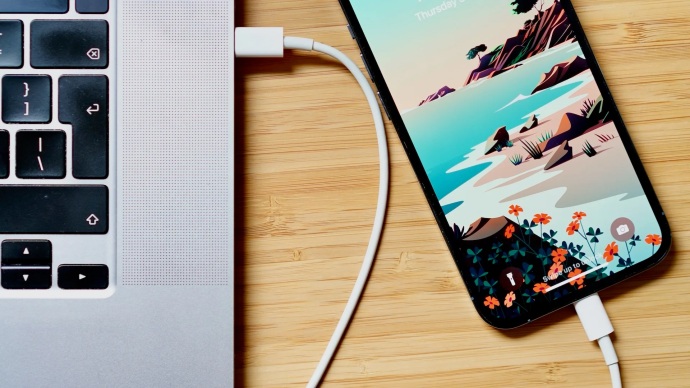
You can transfer photos from iPhone to PC via a USB cable. All you need is a USB cable and the latest version of iTunes installed on your PC.
To install the latest version of iTunes on your PC, please follow these steps:
- Download iTunes for Windows.
- Once the file is downloaded, open it.
- Click Next.
- Check all the three boxes if they aren’t already.
- Click Install.
- When prompted, “Do you want to allow this app to make changes to your device?” select Yes.
- Click Finish.
- Agree to the License of agreement.
- Sign in to iTunes with your Apple id and password.
You are all good now! Let’s look at the different ways you can import photos from iPhone to PC.
How to Transfer Photos from iPhone to PC Using Photos App?
The steps to transfer photos from iPhone to PC via Photos using a USB cable are:
1. Connect your iPhone to your PC with a USB cable.
2. A notification may appear asking if you trust your computer and if you allow access to photos and videos; say that you do.
3. Enter the device passcode.
4. Open the Photos app on your PC from the Start menu.
5. Tap on Import > From a USB device.
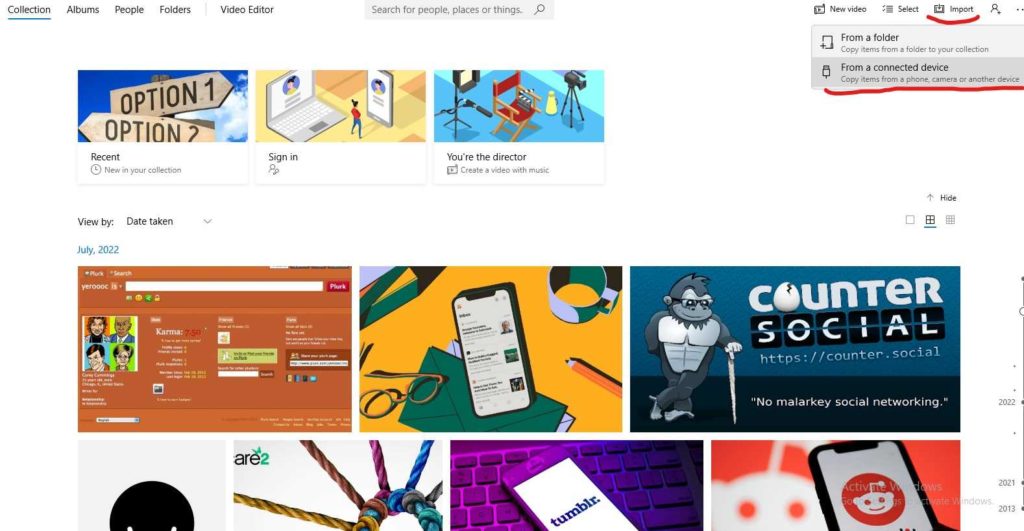
6. Select the items you want to import.
7. Click Continue and your photos will be imported into your computer.
You will find the photos in folders within the Pictures folder. This is one of the methods to transfer photos from iPhone to computer. Scroll down to see more ways through which you can import photos from iPhone to PC.
How to Transfer Photos from iPhone to PC Using Windows Explorer?
You can also transfer photos from iPhone to PC using windows explorer or file explorer. The only requirement is that you have to have the latest version of iTunes installed on your system. When you have iTunes installed, follow these steps:
- Connect your iPhone to your PC using the authentic USB cable that came with the phone.
- Click Allow on your iPhone.
- Go to This PC.
- Open Apple Phone.
- Open Internal Storage.
- When prompted, Trust your computer.
- If your Internal Storage folder is shown empty, go to Settings > General > Reset > Reset location and privacy.
- Do to DCIM.
- Select your photos > copy > paste to your desired location.
How to Transfer Photos from iPhone to PC Using Wireless Methods?
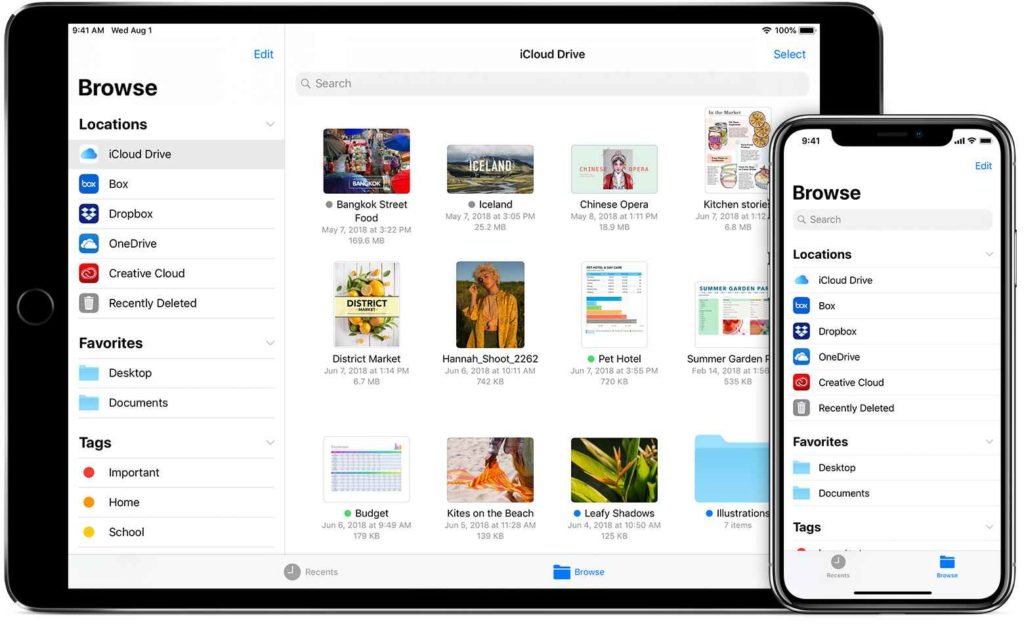
If you get trouble finding a USB cable that is compatible with your iPhone, there are two ways you can transfer your photos wirelessly. To wirelessly transfer photos and videos from your iPhone to a Windows PC, you will need an iCloud account. Once you have an iCloud account, you will need to enable iCloud Photo Library on your iPhone. To do so,
- Go to Settings
- Then to Photos
- Select iCloud Photos (or iCloud Photo Library)
Your photos will now be uploaded to iCloud, every time you click photos (only when you have Wi-Fi).
How to Transfer Photos from iPhone to PC Using iCloud for Windows App?
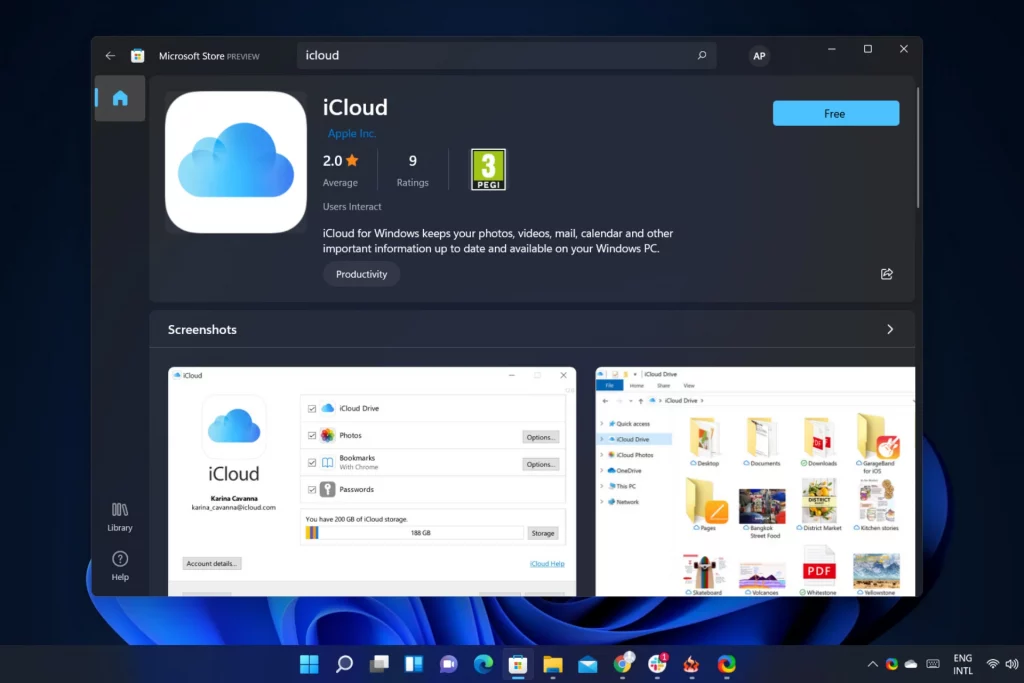
Now, you need to download the iCloud for Windows app onto your computer. Download the application from the Apple website > install the app > sign in to iCloud for Windows using your Apple ID and password. To transfer photos from iPhone to PC, follow these steps:
1. Open the iCloud for Windows program on your PC
2. Check the box next to Photos
3. Tap the Options button to the right of Photos
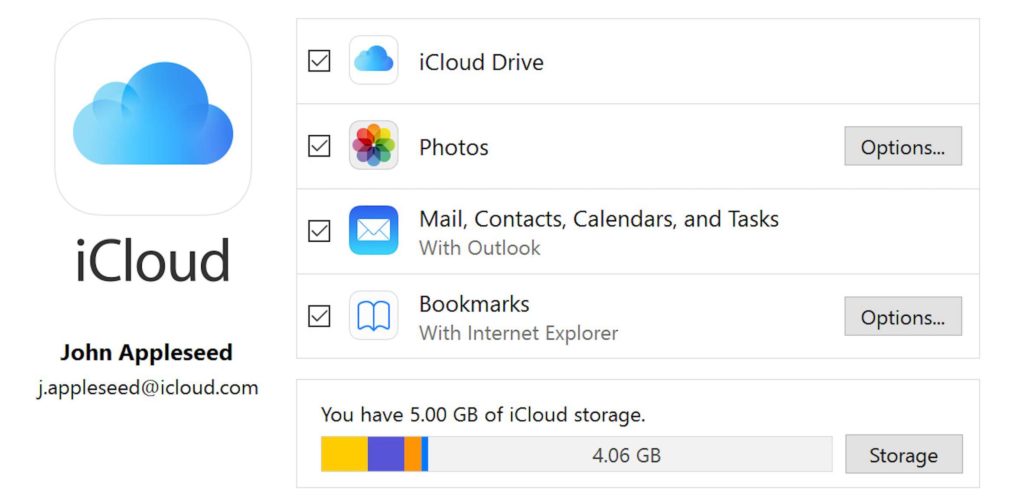
4. Check the iCloud Photo Library option
5. Check the Download new photos and videos to my PC
6. Click Done and then Apply
All new photos that you take will now be automatically downloaded to your computer, provided you have Wi-Fi.
To access your downloaded photos:
- Go to My PC
- Then to iCloud Photos
- Open Downloads
Following these simple steps, you can seamlessly transfer photos from iPhone to PC. Yet this is not the only way you can do so wirelessly.
How to Transfer Photos from iPhone to PC Using iCloud.com?
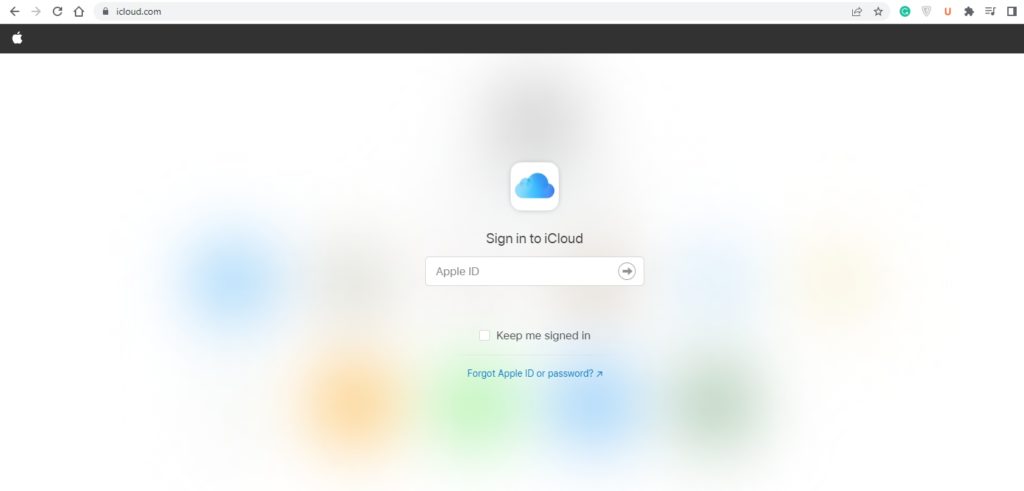
If you don’t want to install the iCloud for Windows app just for the sake of this trivial task of transferring photos, you can use iCloud.com and get the job done just fine. You just have to permit your phone to upload photos to iCloud. Follow these steps:
- Go to Settings of your iPhones
- Select Photos
- And then check iCloud Photos
You are all set to download photos to your PC. All you are left with to do is:
1. Open a web browser (e.g. Chrome)
2. Go to iCloud.com
3. Sign in using your Apple ID and password.
4. If prompted, enter a 6-digit PIN on your PC.
5. Tap Allow when “Apple ID Sign In Requested” is prompted.
6. You can trust your computer if you want to use it for the same purpose in the future and spare yourself the verification process next time.
7. From iCloud.com, click Photos.
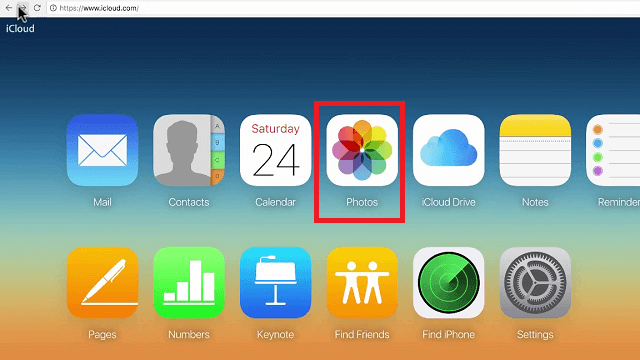
8. On the left-hand sidebar of the library, you can browse media by media type or access the iPhone photo library albums
9. Select photos that you wish to download.
10. Click on the download icon (cloud with a downward arrow) at the top of the screen
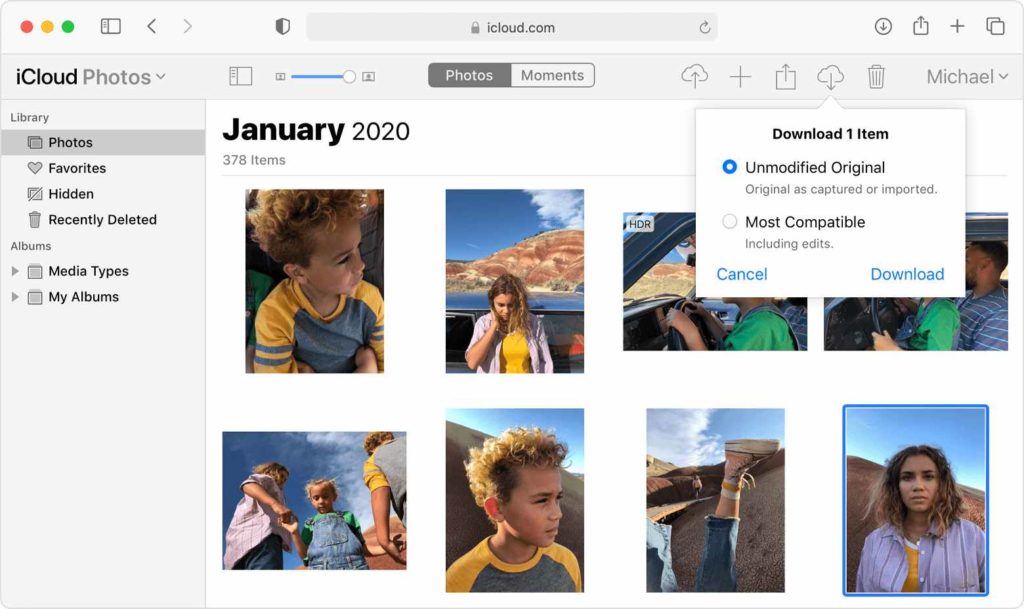
You can access all the downloaded photos in the Downloads folder of your PC. Bravo! You have successfully transferred photos from an iOS device to a Windows device.
How to Transfer Photo from iPhone to PC Using Google Drive?
There is a rather funny way to transfer photos from iPhone to PC. It is by using Google Drive. Follow the instructions:
1. Open the Google Drive app on your iPhone
2. Tap the multicolored (+) symbol
3. Tap Upload
4. Select Photos and Videos
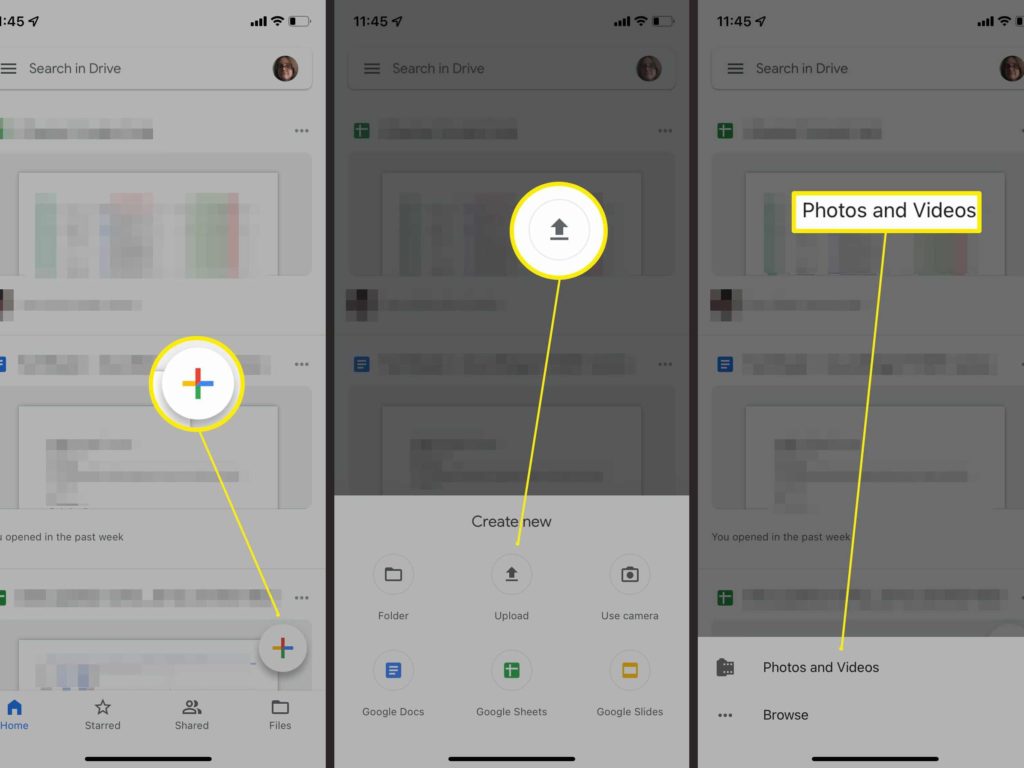
5. Do allow access to all photos.
6. Select the photos you want to upload to your PC.
7. Tap Upload.
8. Give it the required time.
All your Photos are now uploaded to Google Drive. To download the photos from Google Drive to your PC, follow these steps:
- Go to Gmail from a web browser.
- Sign in to the account your Google Drive is linked to
- Tap on the six dots icon on the top
- Select Drive
- Click on the photos you want to download.
- Press the Download icon
How to Transfer Photos from iPhone to PC?
Wrapping Up
Although it is slightly overworked, after you have gone through these processes, you will have some of the best photos that a phone could ever take. So you go now and transfer photos from iPhone to PC like a boss. Until next time, Ciao!
Frequently Asked Questions
u003cstrongu003eHow to transfer photos from iPhone to PC using Photos App?u003c/strongu003e
Follow these steps to transfer photos from iPhone to PC using the Photos app:u003cbru003eConnect your iPhone to your PC u0026gt; Allow Access to photosu0026gt; Enter passcodeu0026gt; Open Photos appu0026gt; Importu0026gt; From a USB deviceu003cbru003e
u003cstrongu003eHow to Install iCloud for Windows?u003c/strongu003e
Download the application from the Apple website here u003e install the app u003e sign in to iCloud for Windows using your Apple ID and password.
u003cstrongu003eHow to Install iTunes on PC?u003c/strongu003e
To install the latest version of iTunes on your PC, please follow these steps:u003cbru003eDownload u003cstrongu003eiTunes for Windowsu003c/strongu003e u003e Open it u003e Click u003cstrongu003eNextu003c/strongu003e u003e Check all the three boxes if they aren’t already u003e Click u003cstrongu003eInstallu003c/strongu003e u003e When prompted, u0022Do you want to allow this app to make changes to your device?u0022, select u003cstrongu003eYesu003c/strongu003e u003e Click u003cstrongu003eFinishu003c/strongu003e u003e u003cstrongu003eAgree u003c/strongu003eto the u003cstrongu003eLicense of agreementu003c/strongu003e u003e Sign in to iTunes with your Apple id and password
Can I upload Photos from iPhone to Google Drive?
Yes, you can. Follow these simple steps:u003cbru003eu003cbru003eOpen the u003cstrongu003eGoogle Drive u003c/strongu003eapp on your iPhone u0026gt; Tap the multicolored (u003cstrongu003e+u003c/strongu003e) symbol u0026gt; Tap u003cstrongu003eUploadu003c/strongu003e u0026gt; Select u003cstrongu003ePhotos and Videosu003c/strongu003e u0026gt; Do allow access to all photos u0026gt; Find the photos you want to upload to your PC and select them u0026gt; Tap u003cstrongu003eUploadu003c/strongu003e